Guide
I'll now walk through the workflow in the order of tasks that need to be done.
To do this I have set out “I can…” statements for you to check your understanding. Directly below each “I can…” statement there will be a descriptor on how to do it and below that a rationale.
Set up
I can install the application
See the installation guide Install
I can open and download a learning area
When first opening the application, some content is automatically downloaded, including the general capability indicators and cross-curriculum priority organising ideas.
To download additional learning areas, navigate to the settings page via the cog icon in the top right, and select the learning areas you want to work with, such as English or Mathematics.
Breakdown
I can explore the curriculum
To get started, click Breakdown in the navigation. In the sidebar you will see the available search options. The planner offers multiple ways to search and navigate the curriculum. You can search by keyword or notation, browse through a folder structure, or use faceted search to filter and narrow results quickly. Spend some time reading and familiarising yourself with the curriculum, its structure, and the language it uses.
As you explore, take note of the relationships between content entities. When viewing a content entity, its related entities are displayed alongside it, so you can see how different parts of the curriculum link together. You will also see the context of each entity, where it sits in the curriculum, where it has come from, and what surrounds it.
I can break down content entities
To break down a content entity, highlight the relevant text and click "Create from Selection" or press Alt+X. You can then click on the newly created chunk to edit it. There are two other options available. "Create from Entire Text" copies the full text of the content entity into a single chunk. "Copy to AI" generates a prompt that you can take to an AI tool to help you break down the content entity.
As mentioned previously, standards are often written with what Marzano et al. (2018) call "equivocal descriptions of content." They can be ambiguous, carry multiple meanings, or be written in ways that are either too abstract or too concrete. A single standard might also be saying more than one thing.
The goal of breaking down content entities (standards) is not to create yet another list of mini-standards. As Vagle (2015) describes, the goal is to get at the "essence" of each standard by reducing it to atomic chunks. A chunk is a single, discrete piece of knowledge. These chunks become the learning intentions of your units, each one describing a specific change in long-term memory.
Chunks exist on a continuum from concrete to abstract. The curriculum tends to be written at a fairly abstract level, which can make it hard to teach directly. You want each chunk to sit at the right level of abstraction. Too abstract and it becomes vague. Too concrete and students will not be able to generalise what they have learned. Grounding brings an abstraction down to something more concrete and teachable. Lifting takes something too specific and frames it at a level where it becomes transferable knowledge.
Breaking down content entities also has a significant secondary benefit. The process of parsing, restructuring, and manipulating curriculum language forces you to engage with it deeply. You come away more familiar with the content, its structure, and its organisation than you were before. This is genuine intellectual preparation for teaching, and it is something no third party can do for you. Teachers should be going directly to the source.
I can mark a content entity
Once you have finished breaking down a content entity, you can mark it as complete using the "Mark Done" button. This is simply an administrative tool to help you keep track of your progress.
I can flag an unclear content entity
If a content entity is genuinely confusing or ambiguous, click the "Confused?" button to flag it. These are saved, and when you're ready, the planner can automatically generate a feedback letter to ACARA on your behalf.
I can go to a random content entity to breakdown
Click the Random button and the planner will take you to a random content entity that has not yet been marked as complete. This is intentional. Rather than deciding what to work on next, you can surrender to the algorithm and let it guide you. All you have to do is keep clicking and working through what appears. This keeps you productive by removing the overhead of organising and prioritising your own workflow. The data already has a place to live; your job is simply to show up and do the work. Moving through the curriculum randomly can also have an unexpected benefit. Encountering content entities in an unpredictable order can help you form connections across different parts of the curriculum that a linear approach might never do.
Chunks
I can prepare chunks
To prepare a chunk, navigate to the Chunks section and select a chunk from the search panel in the sidebar. The application provides a powerful search tool to help you find and filter your chunks, like the one used for content entities. Preparing chunks is about adding important additional information to each one. This information is what transforms a raw piece of curriculum content into something you can plan, teach, and assess with precision.
I can categorise each chunk by knowledge type
For each chunk, select whether it is declarative knowledge (knowing that) or procedural knowledge (knowing how). As Marzano et al. (2018) argued, knowledge type has direct implications for how content should be taught and assessed. Declarative and procedural knowledge are learned differently and identifying which type you are dealing with makes it easier to plan teaching and assessment that is appropriate to what is actually being learned. By categorising each chunk, you can also search and filter by knowledge type later when planning units.
I can prioritise chunks
Rate each chunk out of three on the following three questions:
- How valuable is this knowledge long-term?
- How connected is it across topics and disciplines?
- How essential is it as a prerequisite for future content?
These three scores combine to give each chunk an overall priority rating. The curriculum contains more content than can realistically be taught well. As Marzano et al. (2018) noted, if we cannot teach it all, we need to make deliberate decisions about what we prioritise. Higher priority chunks should be selected first when planning units, and because they are more important, they will need to be revisited and repeated more often over time.
I can map prerequisites
To add a prerequisite, click "Pin" on the chunk you want to add prerequisites to. You can then search for other chunks and click "Add" to add them as prerequisites to your pinned chunk.
Not every chunk will need one, and that is fine. Where a dependency does exist, mark it. Think of each chunk as sitting at the top of a pyramid. Beneath it sit the prerequisite chunks it depends on, and beneath those sit further prerequisites, each layer supporting the one above. Every pyramid fits inside a larger one, building a web of connected knowledge that flows upward.
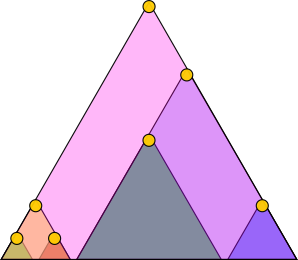
Figure 2. Each node represents a chunk. The chunks below it are the prerequisites that need to be taught first.
As the Grattan Institute identified in Ending the Lesson Lottery (Hunter et al., 2022), the Australian Curriculum does not include a suggested sequence for how content should be taught. Mapping prerequisites makes sequencing decisions visible and intentional, rather than hidden inside an arbitrary year-level structure. When you add a chunk to a unit, you can check its prerequisites and make sure they are covered. Over time, these connections build into learning pathways that give your curriculum a logical flow.
I can flag missing prerequisite
If you feel a chunk needs a prerequisite that does not exist in the curriculum, click "Prereq Gap" to flag it. This will be used later when providing feedback to ACARA. More on this in the feedback section.
I can navigate prerequisites through a graph
In a chunk, click "View Map" to open the prerequisite graph. Each node in the graph represents a chunk, with its connected prerequisites mapped around it. Single click a node to move to a graph view where that chunk becomes the centre. Double click a node to navigate directly to it. This makes the learning pathway to any given chunk visible and explicit.
I can add assessment items
Click the "+" button to add an assessment item to a chunk. You can add one or more items per chunk, and these can be multiple choice, short response, or extended response. At this point you have answered two fundamental questions. The chunk tells you what to teach. The assessment items tell you how you will know students have learned it. This is backward design in practice, defining what success looks like before planning how to get there. As Daisy Christodoulou argued in Making Good Progress? (2017), good formative assessment should focus on specific elements of the curriculum. By assessing at the chunk level, you know exactly what you are testing, which strengthens validity. By building a bank of questions for each chunk, you can draw from multiple items across different occasions, which strengthens reliability. When you create a unit later, you can export a unit report that includes an end-of-unit assessment compiled from the questions attached to each chunk in that unit.
Units
I can build units
To create a unit, click the "Create Unit" button in the bottom right corner. Once inside a unit, click the "Add" button to search for and add chunks to it. Chunks can be searched and filtered by their attributes, such as knowledge type, year level, and priority.
As Marzano recommended in The New Art and Science of Teaching (2017), planning should focus on units rather than individual lesson plans. A unit is a coherent collection of related chunks, selected from the broader web of curriculum knowledge. A useful way to picture this is to imagine all your chunks as a web of interconnected nodes. Building a unit is like reaching into that web and pulling out a cluster of related nodes to teach together.
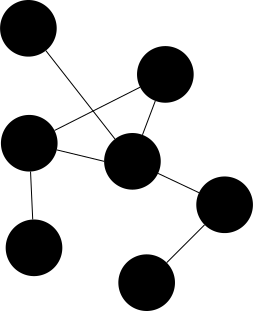
Figure 3. A unit is a selection of related chunks drawn from the broader web of curriculum knowledge.
This model has two advantages. First, it makes connections between ideas visible across subjects and year levels. Second, it does not lock knowledge into rigid categories. Subjects still matter as there are genuine domains of knowledge, but a semantic network makes it easy to include, for example, a mathematics concept inside a science unit, because the connection is visible and explicit. When adding chunks to a unit, related chunks are displayed alongside your selection to help you identify appropriate content. Units are designed to be reusable and can be refined over time.
I can create a unit plan report
Click "Export" to generate a unit plan report. This produces a webpage document summarising everything in the unit, including its learning intentions, chunks, and assessment items compiled from those chunks. The report is designed to be printed or shared as a reference document.
I can edit unit plans using the gap report
To run a gap report on a single unit, open the unit and click "Gap Report". To run it across multiple units, select the units you want to analyse and click "Gap Report". One of the most important goals of unit planning is making sure you have not missed anything. The gap report looks at the learning area content for the same year level and subject as your selected units and identifies any content entities or chunks that have not yet been included. Any gaps surfaced can be quickly and easily added directly from the report. This is particularly useful because it is easy to unintentionally overlook parts of the curriculum when planning unit by unit. The gap report makes those omissions visible so nothing slips through.
I can view implicit content
In unit view, Click "Implicit" to see a table of the cross-curriculum priority organising ideas and general capability indicators that are implicitly covered by the content in your unit. This is worth reiterating. The cross-curriculum priorities and general capabilities have been embedded into the learning area content where appropriate. This means that by teaching your learning area chunks, you are already addressing the relevant organising ideas and indicators. You do not need to plan for them separately. The implicit view simply makes this coverage visible.
Plan
I can plan my year (optional)
To schedule a unit, assign it a start date, end date, and the class it is for. This gives you a year planner view, showing an overview of what you are teaching and when across the year. This step is optional. For some teachers, a simple piece of paper works just as well.
Feedback
I can provide feedback to ACARA
Navigate to the Feedback section in the navigation. Here you can generate two types of feedback emails to send to ACARA, drawing on the items you flagged earlier in the planning process.
This is the payoff for flagging items as you worked through the curriculum. Rather than feedback being lost or forgotten, it is captured systematically and turned into clear, constructive communication to ACARA.
Confused Items
These are content entities you marked as confusing during the breakdown stage. Click "Generate Email" to produce a clarification request to ACARA that includes all of your flagged items.
Prerequisite Gap Items
These are chunks you flagged as needing prerequisites that do not currently exist in the curriculum. Click "Generate Email" to produce a feedback email to ACARA outlining the gaps you identified.
Settings
To access settings, click the cog icon in the top right corner.
I can collaborate with colleagues
Learning Now's curriculum planner is a desktop application. The code runs on your computer, and the data is stored on your computer. The benefit is that your work is private, fast, and entirely under your control. The limitation is that collaboration is restricted. To help with this, you can export and import your data to other users via the settings page.
I can export my data
Click "Export" in settings to export your data. This packages up your work so it can be shared with a colleague.
I can import a colleague's exported data
Click "Import" in settings to import data exported by a colleague. This allows you to build on someone else's work as a starting point for your own planning. For example, a curriculum leader could break down their learning areas and export the results. Other teachers could then import that content and use it as a foundation for their unit planning.
This is admittedly a simple solution, and it requires some discipline to work well.
Note: Future versions of this application will endeavour to provide more sophisticated version for collaboration.